
Building a Client-Side Image Compression Pipeline with Web Workers
Building a Client-Side Image Compression Pipeline with Web Workers
M
Full Stack Developer & SaaS Systems Architect
Building scalable systems from backend to frontend
Image compression sounds like a simple problem.
Take an image:
photo.jpg

and make it smaller.

In practice, once you add real requirements, things become considerably more interesting:

The processing should happen in the browser.
The original file should not be uploaded.
The UI shouldn't freeze while processing large images.
The user may want a maximum file size such as 100 KB or 200 KB.
The user may also need maximum dimensions.
The aspect ratio must be preserved.
EXIF orientation needs to be handled correctly.
Different browsers may produce different encoded file sizes.
The operation should be cancellable.
If the requested target is impossible, the application should say so instead of pretending it succeeded.

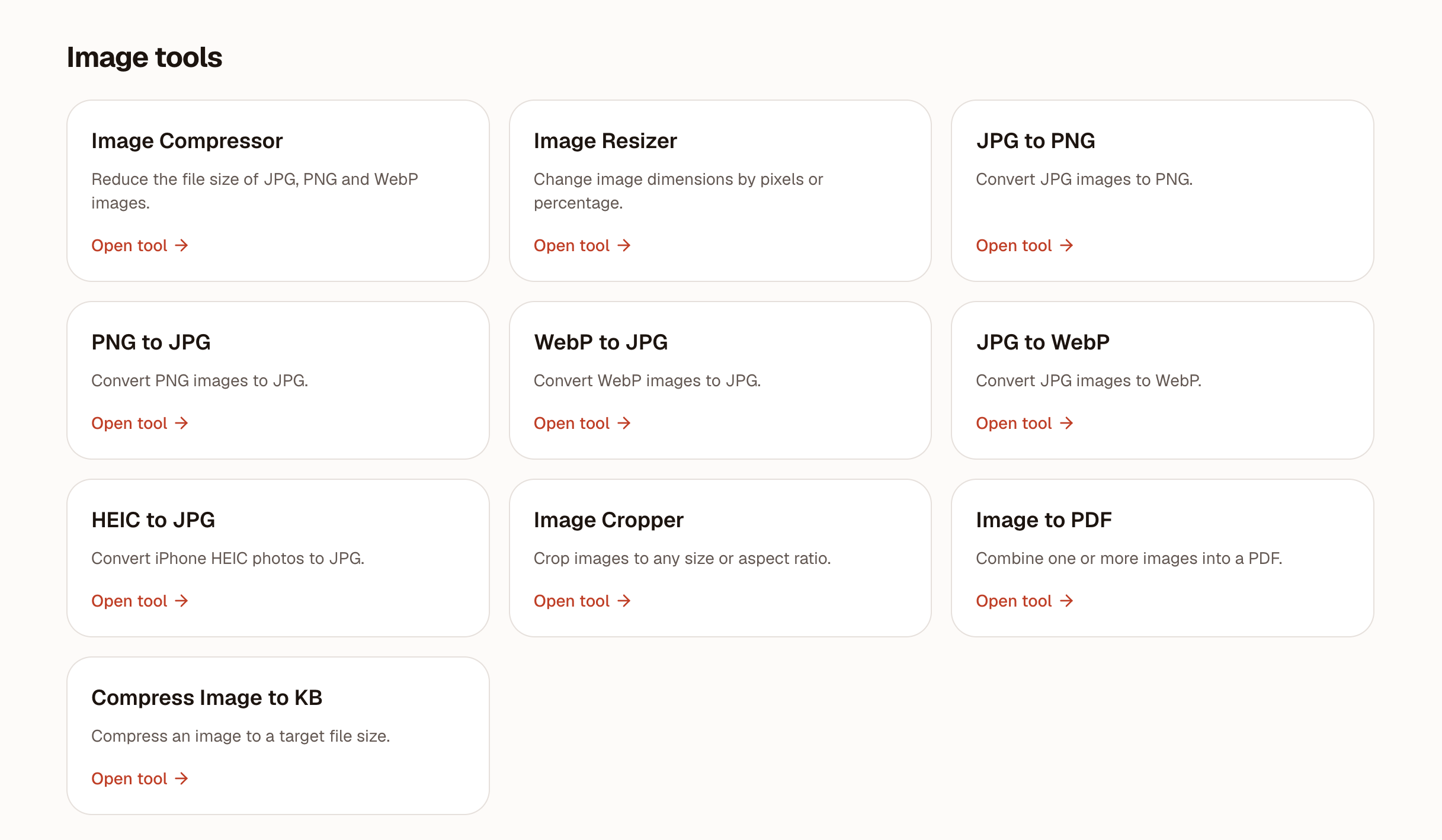
I recently built this kind of pipeline for Pixyro, a collection of browser-based image tools.

This article focuses on the technical side of the implementation.

The architecture

The main principle is simple:

Process the image where it already exists: in the user's browser.

The high-level flow looks like this:

User selects image
        ↓
Validate file
        ↓
Read image dimensions/orientation
        ↓
Calculate target dimensions
        ↓
Send processing job to Web Worker
        ↓
Decode image
        ↓
Draw onto canvas
        ↓
Encode output
        ↓
Measure actual Blob size
        ↓
Return result
        ↓
User downloads file

There is no image upload API involved in this workflow.

The browser performs the processing locally.

Why use a Web Worker?

Image processing is CPU-intensive.

Consider a 4000 × 3000 image:

4000 × 3000 = 12,000,000 pixels

Decoding and manipulating millions of pixels can take enough time to make the main thread noticeably busy.

If the work happens directly inside the UI thread, the user may experience:

frozen controls
delayed scrolling
dropped frames
unresponsive buttons

So the processing pipeline uses a Web Worker.

Conceptually:

                Main Thread
                     │
                     │ processing request
                     ▼
              ┌──────────────┐
              │  Web Worker  │
              │              │
              │   decode     │
              │   resize     │
              │   draw       │
              │   encode     │
              └──────┬───────┘
                     │
                     │ result
                     ▼
                Main Thread

The main thread remains responsible for the interface while the worker handles the expensive processing.

Decoding the image

Modern browsers provide useful primitives for image processing.

One of them is createImageBitmap().

A simplified example:

const bitmap = await createImageBitmap(file);

Once decoded, the bitmap can be drawn onto a canvas.

For a worker environment, OffscreenCanvas can also be used where supported:

const canvas = new OffscreenCanvas(
  width,
  height
);

const context = canvas.getContext("2d");

context.drawImage(
  bitmap,
  0,
  0,
  width,
  height
);

The real implementation needs additional handling around browser compatibility, memory, orientation, cancellation, and output formats.

But this is the core processing primitive.

Compression quality does not equal file size

This was one of the first things that became important.

Suppose we encode a JPEG with:

canvas.toBlob(
  callback,
  "image/jpeg",
  0.8
);

It is tempting to think:

quality = 80%

means the output will be roughly 80% of the original size.

It doesn't.

The output size depends on many things:

image dimensions
image content
JPEG encoder implementation
browser
quality setting
image complexity

Therefore, a target-size compressor cannot reliably calculate:

desired size → quality

using a fixed formula.

Instead, we need to encode and measure the actual result.

Searching for a quality that satisfies the target

Suppose the user asks:

Make this image smaller than 200 KB.

The pipeline can approach this as a search problem.

A simplified strategy is:

Try quality 92
      ↓
Is the result ≤ target?
      │
     yes → done
      │
      no
      ↓
Try quality 40
      ↓
Is the result still > target?
      │
     yes → target may be impossible
      │
      no
      ↓
Binary search between 40 and 92

Every attempt measures the actual Blob:

const blob = await encode(...);

const actualBytes = blob.size;

The important part is that the final decision is based on the generated file, not an estimate.

Why binary search?

Suppose:

quality = 92 → 480 KB
quality = 40 → 130 KB

and the target is:

200 KB

We don't need to test every possible quality value.

We can search the interval:

40 ───────────────────────────── 92

Try the middle:

66

Then use the resulting file size to decide which half of the interval contains the useful range.

Eventually we converge on a quality that satisfies the target.

This makes the number of encoding attempts predictable.

But file size isn't the only constraint

This became an important product requirement.

Imagine this image:

3200 × 2400
123 KB

The user asks for:

Maximum file size: 200 KB
Maximum dimensions: 1200 × 1200

The file already satisfies the file-size requirement.

But it violates the dimension requirement.

A naive implementation might do:

if (file.size <= targetBytes) {
  return file;
}

That would be wrong.

The correct condition is closer to:

if (
  file.size <= targetBytes &&
  dimensionsFit
) {
  return file;
}

Otherwise, the application can return a file that violates one of the user's explicit constraints.

Calculating proportional dimensions

When maximum dimensions are provided, the image should never be enlarged.

For an original image:

width  = 3200
height = 2400

and:

maxWidth  = 1200
maxHeight = 1200

we calculate:

const scale = Math.min(
  maxWidth / width,
  maxHeight / height,
  1
);

For this example:

1200 / 3200 = 0.375
1200 / 2400 = 0.5

scale = 0.375

Therefore:

newWidth  = 3200 × 0.375 = 1200
newHeight = 2400 × 0.375 = 900

Result:

1200 × 900

The important constraints are:

No stretching
No cropping
No padding
No enlargement
Aspect ratio preserved
The interaction between dimensions and compression

This creates an interesting two-stage problem.

The pipeline first determines whether the dimensions need to be reduced.

For example:

Original:
4000 × 3000

Maximum:
1200 × 1200

The image becomes:

1200 × 900

Then the encoder searches for a quality that satisfies the file-size target.

Conceptually:

Original image
      ↓
Dimension constraint
      ↓
1200 × 900
      ↓
JPEG encoding
      ↓
Quality search
      ↓
≤ target size

This separation makes the behavior predictable.

What if the target is impossible?

This is one of the most important parts of a file-processing tool.

Suppose the user requests:

Maximum size: 10 KB
Maximum dimensions: 1200 × 1200

After resizing to:

1200 × 900

the smallest acceptable encoded result might still be:

29.8 KB

At this point, there are two possible approaches.

Approach 1: Keep shrinking the dimensions

This might eventually produce a 10 KB file.

But it violates the user's maximum-dimension configuration only if interpreted incorrectly? More importantly, it changes another constraint the user didn't ask us to relax.

Approach 2: Pretend the target was achieved

Obviously unacceptable.

Instead, the application should report:

The requested target could not be reached
at the configured maximum dimensions.

The user can then decide what constraint to relax.

This is a general principle I like for tools:

Never silently violate a user constraint.

EXIF orientation

Images from phones introduce another problem.

An image can have physical pixel dimensions such as:

4000 × 3000

while EXIF orientation tells the viewer to display it as:

3000 × 4000

If dimension calculations ignore orientation, the application can make the wrong decision.

For example, a portrait image may incorrectly appear to be landscape during processing.

Therefore, orientation needs to be taken into account before applying dimension constraints.

The output should also be normalized so that the resulting pixels represent the expected visual orientation.

Browser differences matter

Another lesson from testing this pipeline is that browsers aren't identical image encoders.

The same source image with the same nominal quality value can produce different output sizes in different browsers.

For example, conceptually:

Chrome:
quality 40 → 196 KB

Firefox:
quality 40 → 248 KB

Safari:
quality 40 → 315 KB

The exact numbers depend on the image and browser version, but the underlying issue is real.

This is another reason why the algorithm must always inspect:

blob.size

instead of assuming that a quality setting maps to a particular output size.

Unsupported formats should stay unsupported

Suppose the user asks for:

JPG → WebP

but the browser environment cannot create WebP output.

One tempting solution is:

Return JPG instead.

That is bad behavior.

The user explicitly requested WebP.

Silently returning another format can break their workflow.

Instead, the application should explain that the requested output format isn't supported in that browser.

This principle applies beyond image tools:

Don't silently change the requested output.

Cancellation

Large images can take time to process.

The user may start a compression job and then click:

Cancel

The processing pipeline should actually stop.

With a dedicated worker, one straightforward approach is to terminate the worker:

worker.terminate();

The UI can then return to the settings state.

A new worker can be created for the next job.

This also helps prevent an old processing operation from accidentally updating the UI after the user has started something else.

Memory is a real constraint

Browser-based processing removes server infrastructure, but it doesn't remove resource limitations.

A decoded image can consume considerably more memory than its compressed file size suggests.

For example:

4000 × 3000 = 12 million pixels

At roughly four bytes per pixel for RGBA data:

12,000,000 × 4
≈ 48 MB

And real workflows can require additional buffers and copies.

This is why file-size limits alone aren't sufficient.

A "10 MB image" isn't necessarily cheap to process.

The number of pixels matters too.

Privacy benefits

The architecture has another useful property.

The image-processing operation doesn't require uploading the user's image.

The workflow is:

Local file
   ↓
Browser
   ↓
Web Worker
   ↓
Canvas / WASM
   ↓
Local Blob
   ↓
Download

Instead of:

Local file
   ↓
Upload server
   ↓
Process
   ↓
Store/cache
   ↓
Download

This eliminates an entire category of infrastructure and data-handling requirements.

There is no reason to upload a JPEG just to resize its pixels when the browser can perform the operation locally.

This doesn't mean browser processing is always better

There are still situations where server-side processing makes sense.

For example:

extremely large files
expensive AI models
video processing
collaborative workflows
centralized document processing
operations requiring server-side data

Browser processing is simply another architectural option.

For relatively self-contained image operations, however, it can be surprisingly capable.

Testing the actual output

One of the biggest changes in my testing approach was moving beyond UI assertions.

It's not enough to test:

Click Compress
→ Result appears

We also need to inspect the downloaded file.

For example:

Input:
3200 × 2400 JPG

Configuration:
200 KB
1200 × 1200

Expected:
≤ 200 KB
1200 × 900
JPG

So the test suite checks things such as:

actual output byte size
actual dimensions
MIME type
aspect ratio
EXIF orientation
cancellation
format behavior
browser compatibility

For the current target-size implementation, production QA covered Chrome, Firefox and WebKit, as well as mobile browser environments.

The tests also specifically covered the case where the input was already below the target file size but exceeded the configured dimensions.

That case caught the regression described earlier.

A reusable processing architecture

One of the goals of the project is avoiding a separate implementation for every tool.

Instead, image operations share common processing infrastructure.

Conceptually:

             Image Processing Core
                     │
       ┌─────────────┼─────────────┐
       │             │             │
     Resize         Crop        Compress
       │             │             │
       └─────────────┼─────────────┘
                     │
                 Re-encode
                     │
             Browser / Worker

This makes it easier to add features without duplicating:

validation
decoding
orientation handling
canvas operations
encoding
cancellation
result handling

The tool-specific logic should describe the operation, while the processing infrastructure handles the mechanics.

What I learned

The biggest lesson wasn't about Canvas or Web Workers.

It was about constraints.

A useful image tool isn't just:

"Make this image smaller."

It may actually be:

"Make this image smaller than 200 KB, keep it below 1200×1200, preserve the aspect ratio, don't upload it, and tell me if that combination is impossible."

Once you think about the problem that way, the architecture becomes clearer.

You need:

Constraints
     ↓
Validation
     ↓
Dimension calculation
     ↓
Processing
     ↓
Actual measurement
     ↓
Constraint verification
     ↓
Result

And not:

Button
 ↓
Canvas
 ↓
Done
Final architecture

The resulting pipeline can be summarized as:

                  User
                   │
                   ▼
             Select Image
                   │
                   ▼
            Validate Input
                   │
                   ▼
         Read Dimensions/EXIF
                   │
                   ▼
        Calculate Constraints
                   │
                   ▼
             Web Worker
                   │
          ┌────────┴────────┐
          │                 │
       Decode             Resize
          │                 │
          └────────┬────────┘
                   ▼
                Encode
                   │
                   ▼
             Measure Blob
                   │
                   ▼
          Verify Constraints
                   │
            ┌──────┴──────┐
            │             │
          Success       Impossible
            │             │
            ▼             ▼
         Download      Explain why

This architecture is still relatively small, but it handles a surprisingly large number of real-world cases.

Final thoughts

Browser APIs have reached a point where many image-processing tasks don't necessarily require a backend.

For the right workloads, you can combine:

Canvas
Web Workers
createImageBitmap()
OffscreenCanvas
WebAssembly
Blob APIs

to build useful processing pipelines entirely on the client.

The difficult part isn't getting the first JPEG to compress.

The difficult part is making the tool predictable.

What happens with a rotated phone photo?

What happens when the browser's encoder behaves differently?

What happens when the requested target is impossible?

What happens when the file is already small enough but its dimensions are too large?

Those edge cases are where a simple demo becomes a real product.

That's what I'm exploring with Pixyro: building small browser-based tools that solve specific file-processing problems without requiring the user's files to leave their browser.

If you're building browser-based image processing yourself, I'd be interested to hear what edge cases you've encountered.